Running RStudio with Singularity on Cypress
Login to Cypress using port forwarding
See for example Jupyter notebook.
Make note of your choice of ports in the above for your use in the following.
Here we assume the choices 8888 and 12345.
Start the interactive session - with port forwarding
First, start an interactive session, but this time you'll need to include port forwarding in order to connect to the RStudio server running on the compute node from your browser on your local machine.
For Workshop : If your account is in the group workshop, please use the following.
[tulaneID@cypress1 ~]$idev --partition=workshop7 -c 2 --port=12345:8888 # request 2 cores in the partition workshop7
Requesting 1 node(s)  task(s) to normal queue of workshop7 partition
1 task(s)/node, 2 cpu(s)/task, 0 MIC device(s)/node
Time: 0 (hr) 60 (min).
0d 0h 60m
Submitted batch job 3287405
JOBID=3287405 begin on cypress01-060
--> Creating interactive terminal session (login) on node cypress01-060.
--> You have 0 (hr) 60 (min).
--> Assigned Host List : /tmp/idev_nodes_file_tulaneID
Last login: Tue Jan 13 11:58:39 2026 from cypress1.cm.cluster
[tulaneID@cypress01-060 ~]$
Non-workshop
[tulaneID@cypress1 ~]idev --partition=centos7 --port=12345:8888 # start an interactive session in the partition centos7
Requesting 1 node(s)  task(s) to normal queue of centos7 partition
1 task(s)/node, 20 cpu(s)/task, 0 MIC device(s)/node
Time: 0 (hr) 60 (min).
0d 0h 60m
Submitted batch job 3288388
JOBID=3288388 begin on cypress01-060
--> Creating interactive terminal session (login) on node cypress01-060.
--> You have 0 (hr) 60 (min).
--> Assigned Host List : /tmp/idev_nodes_file_tulaneID
Last login: Tue Jan 13 14:09:07 2026 from cypress2.cm.cluster
[tulaneID@cypress01-060 ~]$
Construct and check the image file for RStudio
Then proceed as follows to construct the container image file rstudio_latest.sif and check the R version.
[tulaneID@cypress01-060 ~]$module load singularity/3.9.0 # load the singularity module
[tulaneID@cypress01-060 ~]$singularity pull docker://rocker/rstudio:latest # takes a few minutes to construct file r-base_latest.sif
...
[tulaneID@cypress01-060 ~]$singularity exec rstudio_latest.sif R --version # check the version of R
R version 4.5.2 (2025-10-31) -- "[Not] Part in a Rumble"
Copyright (C) 2025 The R Foundation for Statistical Computing
Platform: x86_64-pc-linux-gnu

R is free software and comes with ABSOLUTELY NO WARRANTY.
You are welcome to redistribute it under the terms of the
GNU General Public License versions 2 or 3.
For more information about these matters see
https://www.gnu.org/licenses/.

[tulaneID@cypress01-060 ~]$
Alternative for tidyverse
As an alternative to just the base RStudio container, you can construct the container image file tidyverse_latest.sif and run RStudio server with the tidyverse package suite pre-installed.
To do so, here and in the following, simply substitute tidyverse_latest.sif for rstudio_latest.sif.
[tulaneID@cypress01-060 ~]$module load singularity/3.9.0 # load the singularity module
[tulaneID@cypress01-060 ~]$singularity pull docker://rocker/tidyverse:latest # takes a few minutes to construct file r-base_latest.sif
...
[tulaneID@cypress01-060 ~]$singularity exec tidyverse_latest.sif R --version # check the version of R
R version 4.5.2 (2025-10-31) -- "[Not] Part in a Rumble"
Copyright (C) 2025 The R Foundation for Statistical Computing
Platform: x86_64-pc-linux-gnu

R is free software and comes with ABSOLUTELY NO WARRANTY.
You are welcome to redistribute it under the terms of the
GNU General Public License versions 2 or 3.
For more information about these matters see
https://www.gnu.org/licenses/.

[tulaneID@cypress01-060 ~]$
Start the RStudio server
- Setup local authentication
In order to run the RStudio server, you'll first need to construct a local database for authentication - one time only - as in the following.
echo "auto-create=1" > database.conf
- Start the RStudio server
Start the RStudio server, rserver, via the following.
Note the use of the option --www-port to match your choice of local port number in the above.
[tulaneID@cypress01-060 ~]$singularity exec -B /lustre:/lustre --scratch /run,/var/lib/rstudio-server --workdir $(mktemp -d) rstudio_latest.sif rserver --www-address=0.0.0.0 --www-port=8888 --server-user=$(whoami) --database-config-file $PWD/database.conf
Use RStudio on your browser
- Go to your browser
You can now use the RStudio server web interface on your browser.
Using the above, now that you have the RStudio server running in your Cypress interactive session, open a browser window or tab on your local machine and type the following.
Be sure to match your choice of local port number from above, substituting your choice for 8888 as needed.
localhost:8888/
- Use RStudio server web interface in your browser
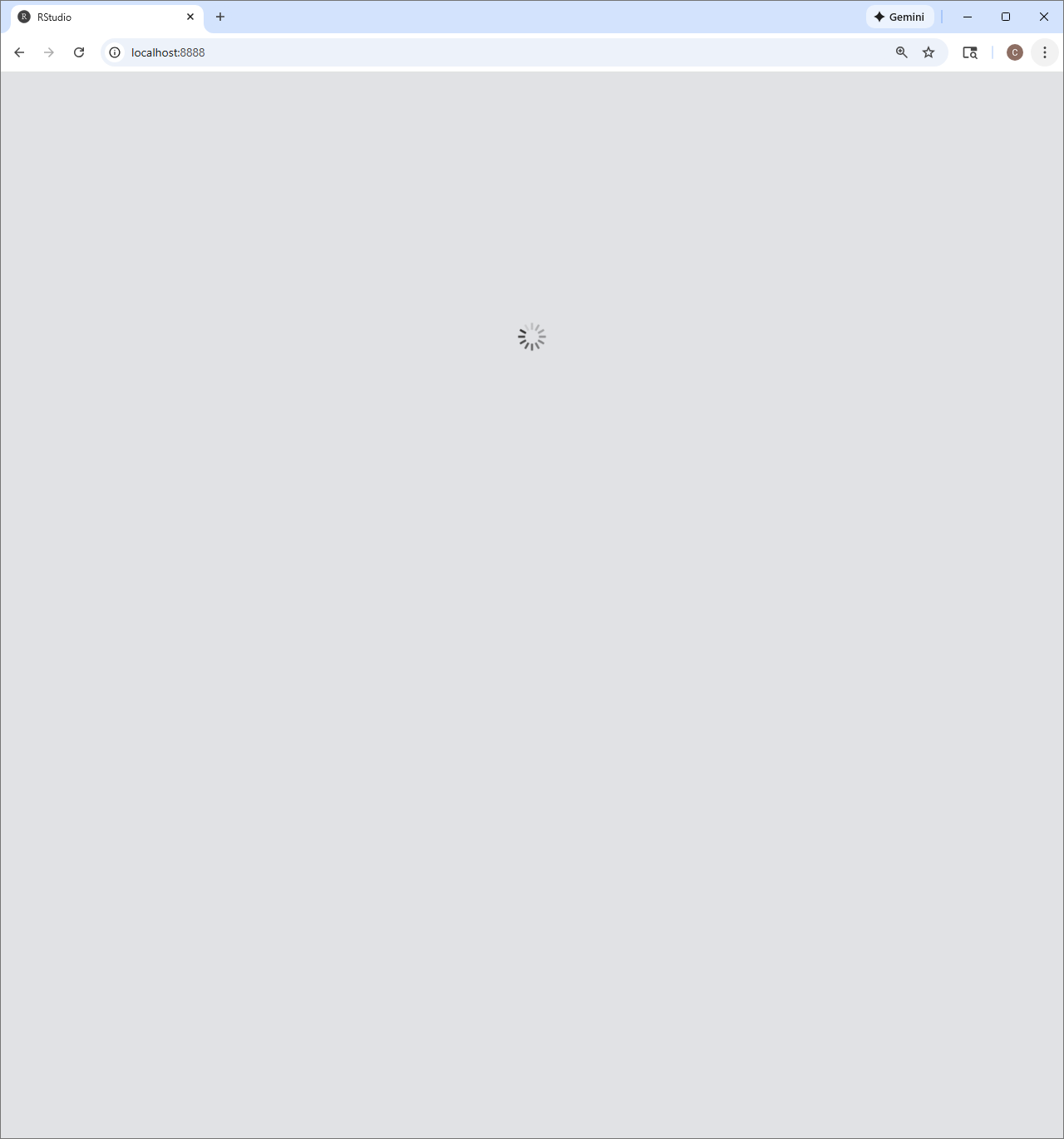
Shown below is RStudio server web interface loading in your browser.
Note that this and all future graphical responses to your actions in the browser may be slow due to your particular network latency.

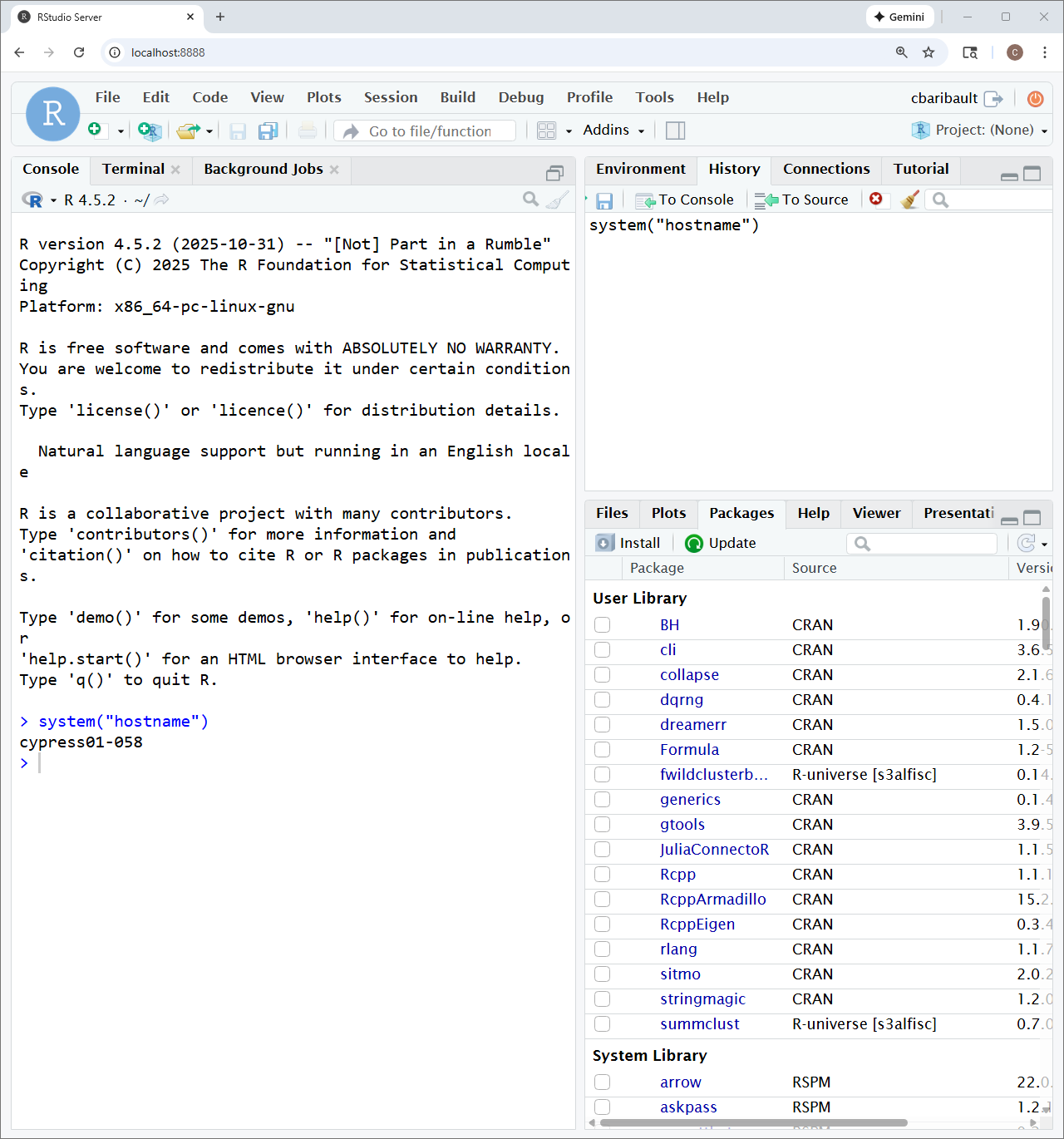
Shown below is RStudio server web interface finished loading in your browser.
Note that all of your previously installed R packages should also available in your RStudio's R session.

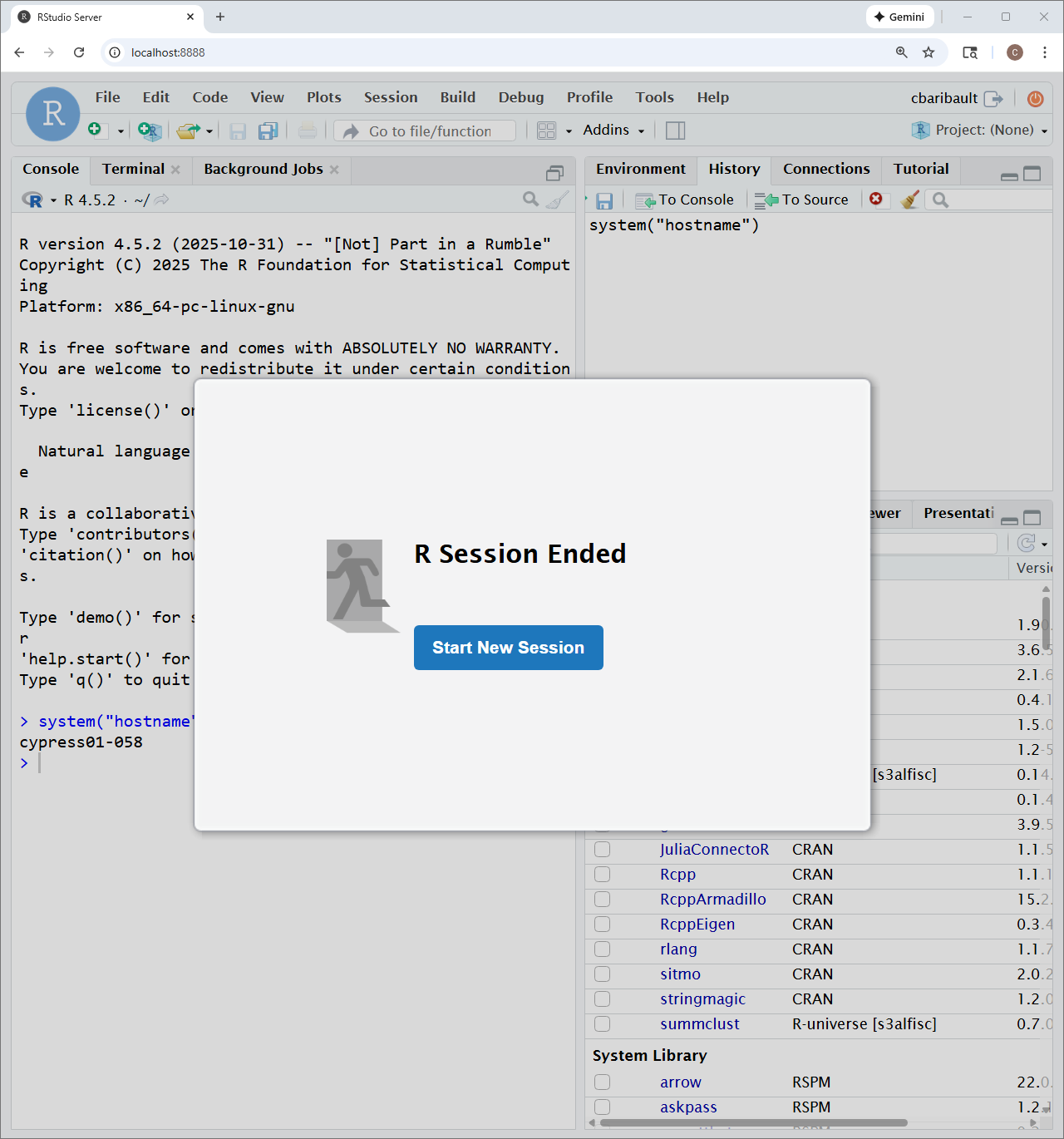
When you're done, go to File -> Quit Session... , then with R Session Ended showing, simply close the browser tab.

Attachments (3)
-
RStudioInBrowserStartup.png
(23.0 KB
) - added by 9 months ago.
RStudio in browser starting up
-
RStudioInBrowserRunning.png
(194.6 KB
) - added by 9 months ago.
RStudio interface in browser running
-
RStudioInBrowserEnded.png
(174.6 KB
) - added by 9 months ago.
RStudio in browser session ended
Download all attachments as: .zip