| Version 20 (modified by , 4 months ago) ( diff ) |
|---|
Globus
Globus is a research cyberinfrastructure, developed and operated as a not-for-profit service by the University of Chicago. With Globus, you can easily, reliably, and securely move, share, & discover data no matter where it lives – from a supercomputer, lab cluster, tape archive, public cloud or laptop. Access and manage all your data, even protected data, from anywhere, using your existing identities, with just a web browser.
Access Files on Cypress From Globus Web App
This is an instruction to access your files on Cypress with the Globus Web App.
Initial Setup
Your Globus account using your Tulane credentials is provided when you request your Cypress account. (See HPC & Globus Request.)
Otherwise, you can also get access to Globus with GitHub, Google, or ORCID iD.
To set up on Cypress, see this page.
Managing Directory Permissions
With Globus, you will only be able to transfer files to and from directories that are set to be accessible. To configure which directories are accessible to Globus Connect Personal, edit the file ~/.globusonline/lta/config-paths and restart Globus Connect Personal.
This file is a headerless CSV with fields defined as follows.
<path>,<sharing flag>,<R/W flag>
<path>,<sharing flag>,<R/W flag>
...
- Path An absolute path to be permitted. Only paths that are present in the config file can be accessed. Tilde (~) can be used to represent the home directory of the user running Globus Connect Personal.
- Sharing Flag Enable or disable sharing. This field must be 1 or 0. 1 allows sharing for the path and 0 disallows sharing.
- R/W Flag Enable or disable write-access. This field must be 1 or 0. 1 allows read/write access and a 0 allows read-only access. The permissions set by this field are in addition to any other permissions and restrictions, e.g. file system permissions.
For example, the below allows read/write access to your home directory and the lustre filesystem (ex. /luster/project/mygroup/mydir) without sharing, and read-only access to /luster/project/mygroup/shareDir with sharing. (Note: With Globus Connect Personal, you cannot share data with others.)
~/,0,1
/lustre/project/mygroup/mydir,0,1
/lustre/project/mygroup/shareDir,1,0
Running Globus Connect Personal on Cypress
You have to use a CentOS 7 computing node to run Globus Connect Personal. Below is an example Slurm script.
#!/bin/bash
#SBATCH --partition=centos7
#SBATCH --qos=long
#SBATCH --job-name=Globus-connect
#SBATCH --time=7-00:00:00
#SBATCH --nodes=1
#SBATCH --ntasks-per-node=1
#SBATCH --cpus-per-task=1

module load globusconnectpersonal/3.2.5

globusconnect -start
File Transfer with Globus Web App
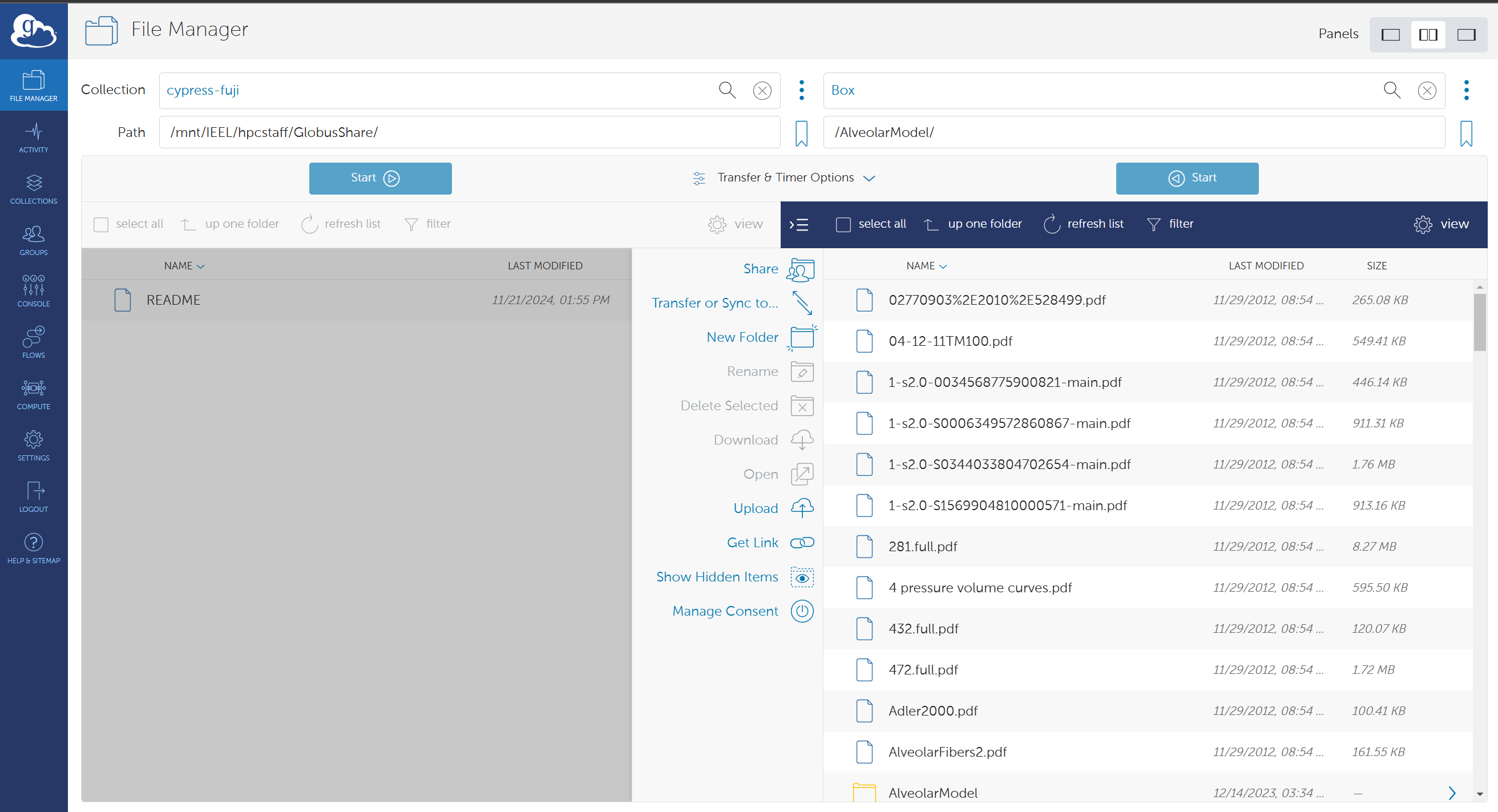
Log in to Globus with a web browser and open FILE MANAGER.

In one of the Collection sections, type in your personal endpoint name that you defined when you set it up, or type in the UUID you got. (see this page)
On the other side of the Collection section, type in an endpoint name or UUID you want to transfer data from/to Cypress.
For more details, see the following.
- "How To Log In and Transfer Files with Globus"https://docs.globus.org/guides/tutorials/manage-files/transfer-files/
- "10 Years of Connecting the Research Universe"https://www.youtube.com/watch?v=pG9CplejirU
Data Transfer to/from Tulane Box
If you are in Globus with a tulane.edu account, you have access to the Box endpoint UUID 211b0e52-3efc-47c7-b5dc-d35a67df55a0
The box endpoint is the user's tulane.edu box folder. You need to give consent when you try to access it the first time.
Box Limitations
When transferring your files from Cypress to Box, ensure that your files and directories meet the following Box limitations:
- The size of each individual file must be less than 500 GB.
- For optimal performance, each directory should contain fewer than 5,000 files.
- File and directory names must be unique within a single directory (Box’s file system is case-insensitive).
To detect files and directories that do not meet Box limitations, please follow the steps below.
On Cypress, download the script,
git clone https://gitlab.tulane.edu/fuji/trimming-files-dirs-for-box.git
Edit the directory you want to check:
cd trimming-files-dirs-for-box
nano TrimFileDir4Box.sh
Update the directory variable (e.g., change it to "/lustre/project/vthannickal") to match the target directory you want to process.
Submit a job
sbatch TrimFileDir4Box.sh
After the job is completed, check the log file. It will report any files or directories that do not meet Box limitations.
The document is also available here: https://gitlab.tulane.edu/fuji/trimming-files-dirs-for-box
File Transfer with Globus Commandline Tools
This has to be done in an interactive session on a centos7 node.
idev -t 10 --partition=centos7
On a CentOS 7 computing node, run Glonus Connect Personal in the background.
module load globusconnectpersonal/3.2.5
globusconnect -start &
Activate the virtual environment of globus command line tools.
source activate globus-cli
Log in to authenticate Globalus services. This needs to be done only once, and it requires an authentication process with a web browser.
globus login --no-local-server
You can see your UUID by
globus endpoint local-id
Your UUID is a unique ID and is used to identify your Cypress endpoint. It is convenient to define it as an environmental variable, for example,
MY_UUID=$(globus endpoint local-id)
UUID for the Tulane Box endpoint is defined by the environmental variable $TULANE_BOX.
To access Tulane Box, this may require another authentication process.
globus ls "$TULANE_BOX"
If you encounter an error like below:
The resource you are trying to access requires you to re-authenticate.
message: Missing required data_access consent

Please use "globus session update" to re-authenticate with specific identities.
Try re-authenticate with
globus session update tulane.edu
To look into a specific directory in Box, for example, /projects/data,
globus ls "$TULANE_BOX:/projects/data"
To transfer a file in Box to Cypress, for example/projects/data/dataset1.dat in Box to /lustre/project/mygoup/mydir/data/dataset1.dat,
globus transfer "$TULANE_BOX:/projects/data/dataset1.dat" "$MY_UUID:/lustre/project/mygoup/mydir/data/dataset1.dat" --label "TRANSFER1"
This submits a transfer task with the label 'TRANSFER1', you can monitor the progress on the Web App.
To transfer files in a directory in Box to Cypress recursively, for example/projects/data/ in Box to /lustre/project/mygoup/mydir/data/,
globus transfer "$TULANE_BOX:/projects/data/" "$MY_UUID:/lustre/project/mygoup/mydir/data/" --recursive --label "TRANSFER_DIR"
Note that the directory on Cypress must be set write-access by ~/.globusonline/lta/config-paths (see above). See https://docs.globus.org/cli/reference/transfer/ for more options.
See https://docs.globus.org/cli/quickstart/ for further process.
File Transfer and Computation in Batch Jobs
Attachments (1)
- FileManager.png (217.9 KB ) - added by 22 months ago.
Download all attachments as: .zip